Abstract
Product: BrassRing ATS on Cloud
Configure BrassRing ATS Third-Party Browser Cookie Exceptions
Some modern browsers block third-party cookies by default. This can cause issues for BrassRing ATS Platform BrassRing ATS, such as BrassRing ATS not fully loading, or continually refreshing.
The browser can be configured to add BrassRing ATS as an exception.
There are three Domain Names to add to the exception list in the browser:
Process
Google Chrome
In Google Chrome, insert chrome://settings/cookies into the URL address bar and select Enter.
In the Sites that can always use cookies section and select Add.
Insert the Domain Name.
Important
DO NOT add https:// in front of the Domain Name.
Select Add.
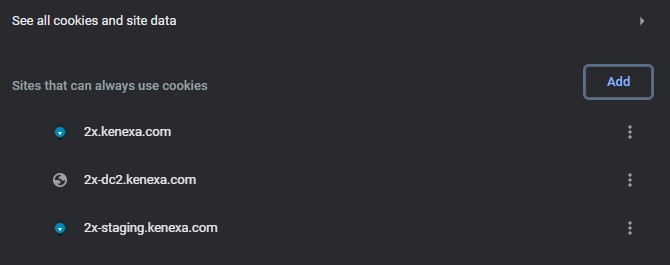
Repeat this process for all Domain Names.
Safari for iPhones or iPads
Open Settings on your device.
Select Safari.
Scroll to the PRIVACY & SECURITY section.
Set the Block All Cookies option to OFF.
Note
Depending on the version of the Safari browser this alone will be enough. If issues persist, proceed to the following step 5.
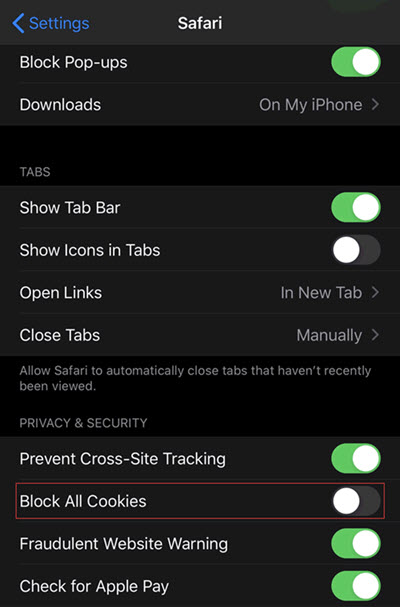
In the PRIVACY & SECURITY section, set the Prevent Cross-Site Tracking option to OFF.